
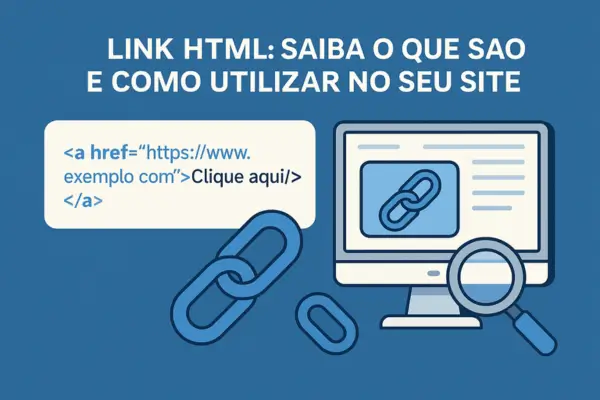
O HTML link Links are one of the foundations of the internet. With them, users can navigate between pages, content and resources with just one click. More than just functionality, links represent the connection between ideas and digital experiences. Learning how to create them is a fundamental step for anyone who wants to build projects on the web — from blogs to complete systems.
In this article, you'll learn everything from the basics to more refined techniques for personalization, accessibility, and SEO, all in simple, objective language that's perfect for beginners.
If you think HTML is complicated, prepare to be surprised. Creating links is one of the first and easiest steps in this language — and yet, one of the most powerful.
What is an HTML Link and What is it for?
HTML links (or hyperlinks), are elements that connect documents, pages, resources, and information on the web. A single click is all it takes for the user to navigate from one place to another.
In HTML, links are created with the tag (from anchor). This tag wraps the clickable text and points to the destination via the href attribute.
Basic example of an HTML link:
<a href="https://www.exemplo.com">Clique aqui</a>When the user clicks on Click here, he is taken to the website example.com.
How Hyperlinks Work in Practice
The magic of links lies in their simplicity. One click is all a user needs to do to access something new.
They can:
- Redirect to another page on the same website or a completely different one
- Open an email client for direct contact
- Take the user to a specific section of the same page (anchor)
- Start downloading a file, such as an image, e-book, or document
Examples:
Link to another page:
<a href="https://www.exemplo.com">Clique aqui</a><a href="pagina.html">Ir para a página</a>Email link:
<a href="mailto:contato@exemplo.com">Enviar e‑mail</a>Internal link (anchor):
<a href="#secao2">Ir para a Seção 2</a>Tags <a> and attribute href: the basic structure of the link
Learn how to correctly use the anchor tag and href attribute.
The minimum structure is:
<a href="URL">Texto clicável</a>The “ attribute defines where the link will take the user.
Put the desired URL inside the quotes:
href="https://exemplo.com"This way, your HTML link will know exactly where to send anyone who clicks on it.
Customizing Link Text
Between the opening <a> and the closing </a> the text is visible and clickable:
<a href="https://exemplo.com">Visite nosso site</a>Choose clear, objective texts — avoid generic “click here” texts.
Example:
<a href="https://exemplo.com">Visite nosso site</a>How to Test if an HTML Link is Working
After writing your HTML code, test if the link is working:
- Copy the link code and save it in a file with the extension .
.html(for exampleteste.html). - Open this file with a browser.
- Click on the link and check if it leads to the correct destination.
This validation prevents broken links or incorrect redirects.
How to Write an HTML Link the Right Way
The basic structure of a link is:
<a href="URL">Texto clicável</a>But you can (and should) explore additional attributes to improve usability:
target: defines where the link will be opened
title: displays a tooltip when hovering over the link
rel: adds extra information for search engines and security
These attributes help both the user experience and your site's performance in search results.
Attribute target: open in new tab or in the same tab?
target sets , the the link will open:
| Price | Behavior |
|---|---|
(empty) or _self | Open in the same tab |
_blank | Opens in new tab |
Open in the same tab:
<a href="https://site.com">Abrir aqui</a>Open in new tab securely:
<a href="https://site.com" target="_blank" rel="noopener noreferrer">Abrir em nova aba</a>The pair rel="noopener noreferrer" prevents security breaches and improves performance.
Difference Between Absolute and Relative URLs
The URL used in the href can be Absoluta (complete) or on (related to the location of the HTML file).
Absoluta: points to a complete web address. Ideal for external links.
<a href="https://meusite.com/pagina.html">Link absoluto</a>Relative: points to files within the server itself.
<a href="pagina.html">Link relativo</a>Use relative links for internal content; absolute links for outside your domain.
Enriching links with titles, styles, and classes
Attribute: Shows a tooltip on mouseover.
<a href="https://site.com" title="Visite nosso site">Nosso Site</a>Attribute: binds the link to CSS styles.
Attribute: creates internal anchors or unique styles.
You can also add id, class, or inline styles via style.
How to Style HTML Links with CSS
Want your links to match your site's visual identity? Use CSS.
You can modify:
Text color
Remove or change underline
Change style on hover
Style examples:
<style>
a {
  color: green;
  text-decoration: none;
}
a:hover {
  color: red;
  text-decoration: underline;
}
</style>
Or inline:
<a href="#" style="color:red; text-decoration:none;">Sem sublinhado</a>Creating shortcuts with internal links (anchors)
Learn how to create shortcuts within the page itself with IDs and anchors.
Example:
<a href="#secao2">Ir para a Seção 2</a>
...
<div id="secao2">Conteúdo da seção 2</div>
Great for menus or long pages.
Anatomy of a complete HTML link
Disassemble a link and understand what each piece of code represents.
<a href="https://exemplo.com" target="_blank" rel="noopener" title="Ir para o site">
  Visite
</a>href: click destination
target: opens new tab (_blank)
rel: security (noopener)
title: mouseover tooltip
Text: visible and clickable part
Best practices for professional links
To promote accessibility, SEO, and security:
- prefer https whenever possible.
- Avoid vague texts like click here — use descriptive keywords.
- Test all links before publishing.
- Use
rel="nofollow"in sponsored links. - Include aria-label to improve accessibility if the text is not self-explanatory.
These practices make your website more professional, secure, and accessible.
Conclusion: a small tag with great power
Create a HTML link It’s simple, but the impact is profound. With just one line of code, you can open pathways, drive journeys, and create connections.
Think of each link as a bridge. And you, as a developer, have the power to guide your visitors with clarity, responsibility, and strategy. Now that you understand HTML links, experiment, create, and connect. The digital world is just a click away.
Nota: This article is for educational purposes only. Meu Tudo Digital is not affiliated with, endorsed by, or sponsored by WhatsApp or Meta Platforms Inc.
Additional Note: This article mentions external links for illustrative and educational purposes. Meu Tudo Digital has no commercial or affiliate relationship with Hostinger or other sites mentioned, unless expressly stated.